
Tickets
The tickets plugin lets you create support panels that members can use to open private ticket channels. Tickets are configured from the dashboard with Templates, Panels, and History.
Before You Start
Invite Tracker needs permission to create, edit, and delete ticket channels. If you enable role changes, pinned messages, embedded messages, or transcripts, make sure the bot also has permission to manage those roles, pin messages, embed links, and read message history.
WARNING
If Invite Tracker cannot create or delete channels, update channel permissions, or send messages in the configured channels, tickets may fail to open, close, claim, escalate, or save transcripts.
Please ensure that the bot has the correct permissions.
How Tickets Work
A ticket setup has two main parts:
- Templates define what happens when a ticket opens. This includes the ticket category, channel name, support roles, messages, forms, transcripts, claiming, escalation, logs, and automations.
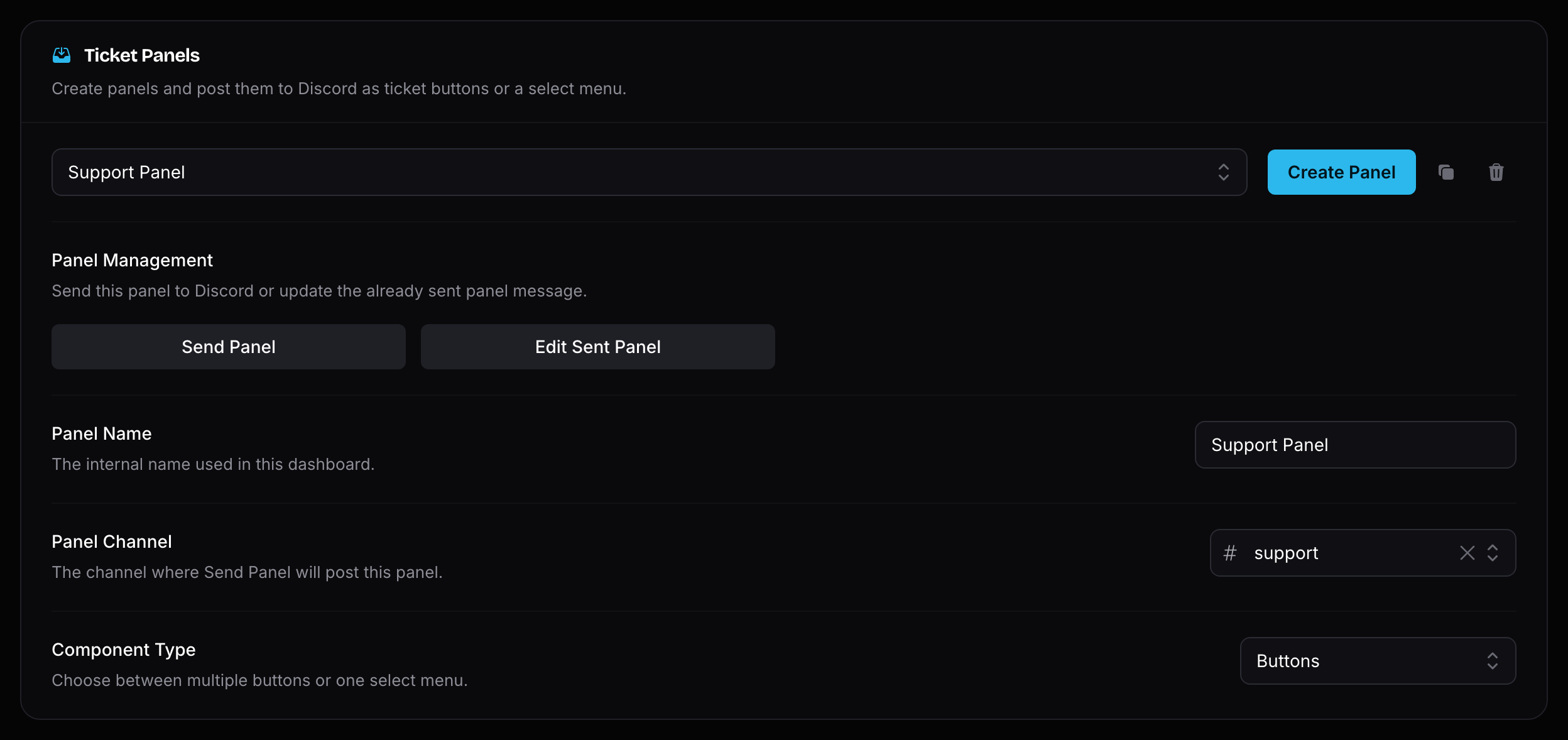
- Panels are the messages members click in Discord. A panel can show ticket buttons or one select menu, and each panel option is connected to a template.
After members start opening tickets, the History page gives you a searchable list of open and closed tickets.
Free and Premium Limits
Tickets are available to every server for free, including unlimited tickets, transcripts, basic claiming, forms, and logs. Invite Tracker Premium raises the ticket limits and unlocks the advanced ticket features.
| Limit | Free | Premium |
|---|---|---|
| Ticket panels | 3 | 25 |
| Ticket templates | 3 | 25 |
| Ticket options per panel | 3 | 25 |
| Form questions | 3 | 5 |
| Automation rules | 1 | 10 |
| Overflow categories per template | 1 | 25 |
| Transcript storage | 30 days | Unlimited |
The following features are Premium only:
- Advanced automations, including auto-closing inactive tickets. Free servers can use one Ticket Owner Left Server → Close Ticket rule.
- Ticket escalation between templates.
- Panel schedules (opening hours).
- Close DM messages with transcript delivery.
- Advanced claiming: claim renaming, claim categories, support permission modes, and claim/unclaim role changes.
- Role changes on ticket open and close.
- Custom ticket channel naming patterns.
- Embed images, thumbnails, and author fields in ticket messages.
- Removing the "Powered by Invite Tracker" branding from panels, ticket messages, and transcripts.
- Ticket analytics: response times, staff performance, and satisfaction (CSAT) surveys.
Setup Order
To set up tickets, use the dashboard pages in this order:
- Create at least one ticket template.
- Create a ticket panel and bind templates to it.
- Save the panel, then click Send Panel to post it in Discord.
- Use Ticket History to review open and closed tickets.
- Check Ticket Analytics to see how your support team performs.
What Members See
Members open a ticket by clicking a panel button or choosing an option from a panel select menu. If the selected template has a form, Invite Tracker opens a Discord modal first. After the form is submitted, Invite Tracker creates a private ticket channel for the member and support roles.
Ticket Commands
Ticket commands work inside open ticket channels. They are mostly used by support members with the template's support roles, while administrators can always manage tickets. Ticket owners can also close their own ticket when Opener Can Close is enabled.
For the full command list, see Tickets Commands.
WARNING
Deleting a ticket channel manually marks the ticket as closed, but it does not run the normal close flow. Use the close button or /ticket-close when you want close roles, close DMs, close logs, and transcripts to run.