
Invite Tracking
The invite tracking plugin lets you choose a fake delay for your server, decide whether rejoins count, blacklist users or roles, hide users from the leaderboard, and manage your Invite Labels.
How Fake Invite Detection Works
When a new member joins your server, Invite Tracker checks how old their Discord account is. If the account was created within the number of days specified by your fake delay setting, the join is flagged as a "fake" invite.
Example: If your fake delay is set to 5 days and a 3-day-old account joins via someone's invite link:
- The inviter gains +1 regular invite (the join still counts)
- The inviter also gains +1 fake invite (flagging it as potentially fake)
- The inviter's total invite count uses the formula:
regular - left - fake + bonus
This helps server owners identify inviters who may be using alt accounts or bots to inflate their invite counts.
Fake Delay
Premium feature
Customizing the fake delay requires Invite Tracker Premium. Every server otherwise uses the default value.
The fake delay of your server is the number of days old an account has to be when joining to not be counted as a fake invite. For example, if you set your server's fake delay to 5 days and an account that is 4 days old joins your server, the person who invited that account will gain a regular invite and a fake invite. The explanation of every invite type can be found here.

INFO
Every server's default fake delay is 3 days.
TIP
A good fake delay is 5 days.
WARNING
A server's fake delay must be between 0 and 300 days.
Don't Count Rejoins
By default, a member who leaves your server and later joins again grants their inviter a regular invite again. When don't count rejoins is enabled, members who have already been in your server before count as fake invites when they come back: the inviter gains a regular invite and a fake invite, exactly like a join from an account younger than the fake delay.

INFO
This option is disabled by default, so rejoins keep counting as regular invites until you enable it.
WARNING
Invite Tracker only detects rejoins it has witnessed. Members who joined and left your server before Invite Tracker was added are counted as first-time joins when they come back.
Rejoin detection is not affected by /resetinvites: a member who has been in your server before still counts as a rejoin after an invite reset.
Invite Blacklist
This is where you invite blacklist members using their user IDs. Invite-blacklisted users' invites are not tracked by Invite Tracker and they do not gain any invites. Welcome/leave messages are not affected by this.

INFO
Information regarding how to get a user's ID can be found here.
WARNING
Free servers can only have a maximum of 3 invite-blacklisted users.
Premium servers can have a maximum amount of 100 invite-blacklisted users.
DANGER
Be careful not to blacklist the wrong users.
Role Blacklist
Premium feature
Blacklisting roles from gaining invites requires Invite Tracker Premium.
This is where you blacklist entire roles from gaining invites. Members with any of the selected roles do not gain any invites when someone joins through their invite links. Welcome/leave messages are not affected by this.
This is useful to keep staff, moderators, or bot-managed roles out of invite rewards and competitions without blacklisting each member one by one.

INFO
Whether a join grants an invite is decided by the roles the inviter holds at the time of the join. Nothing is changed retroactively: invites gained before a role was blacklisted are kept, and joins that were not counted are not granted back when the role is removed.
The blacklist can take a short moment to start applying to new joins right after you configure it.
Hidden From Leaderboard
This is where you can hide users from the invites leaderboard using their user IDs. Hidden users' invites are still tracked but not shown on the leaderboard.

INFO
Information regarding how to get a user's ID can be found here.
WARNING
Free servers can only have a maximum of 3 users hidden from the leaderboard.
Premium servers can have a maximum amount of 100 users hidden from the leaderboard.
Invite Labels
Invite Labels allow you to label specific invite codes to track where members are joining from. You can also optionally assign a role that will automatically be given to members when they join using that specific invite code.
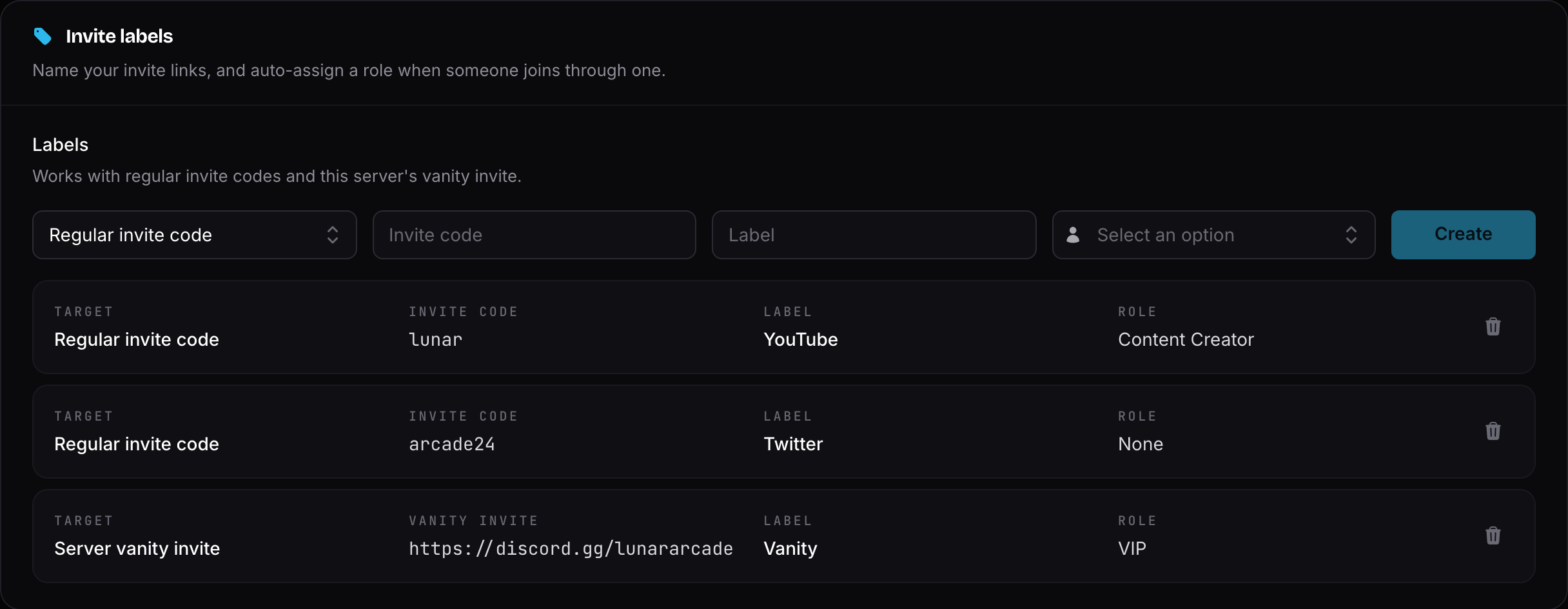
Setting Up an Invite Label
- Select your invite code type ("Regular invite code" or "Server vanity invite")
- Paste your invite link or code (e.g.,
discord.gg/someinviteor justsomeinvite) - Enter a custom text label to identify this invite source
- (Optional) Select a role to automatically assign to members who join via this invite
Auto-Role Assignment
When you assign a role to an invite label, any member who joins your server using that specific invite code will automatically receive the selected role. This is useful for:
- Identifying members from specific communities or partnerships
- Granting special access based on where members found your server
- Tracking marketing campaign effectiveness
INFO
The auto-role from invite labels is applied in addition to any auto roles configured in the Administration plugin.
TIP
You can use the %invite_label% variable for your join, join DM, and leave messages so it will show the label name (or its invite code if no label is set).
You can also search who joined from a specific label by using the /invitedlist command (a Premium feature).
WARNING
Free servers can only have a maximum of 1 invite label.
Premium servers can have an unlimited amount of invite labels.