
Ticket Templates
Ticket templates define how new tickets are created and managed. Create templates from your server's dashboard by opening Tickets -> Templates.
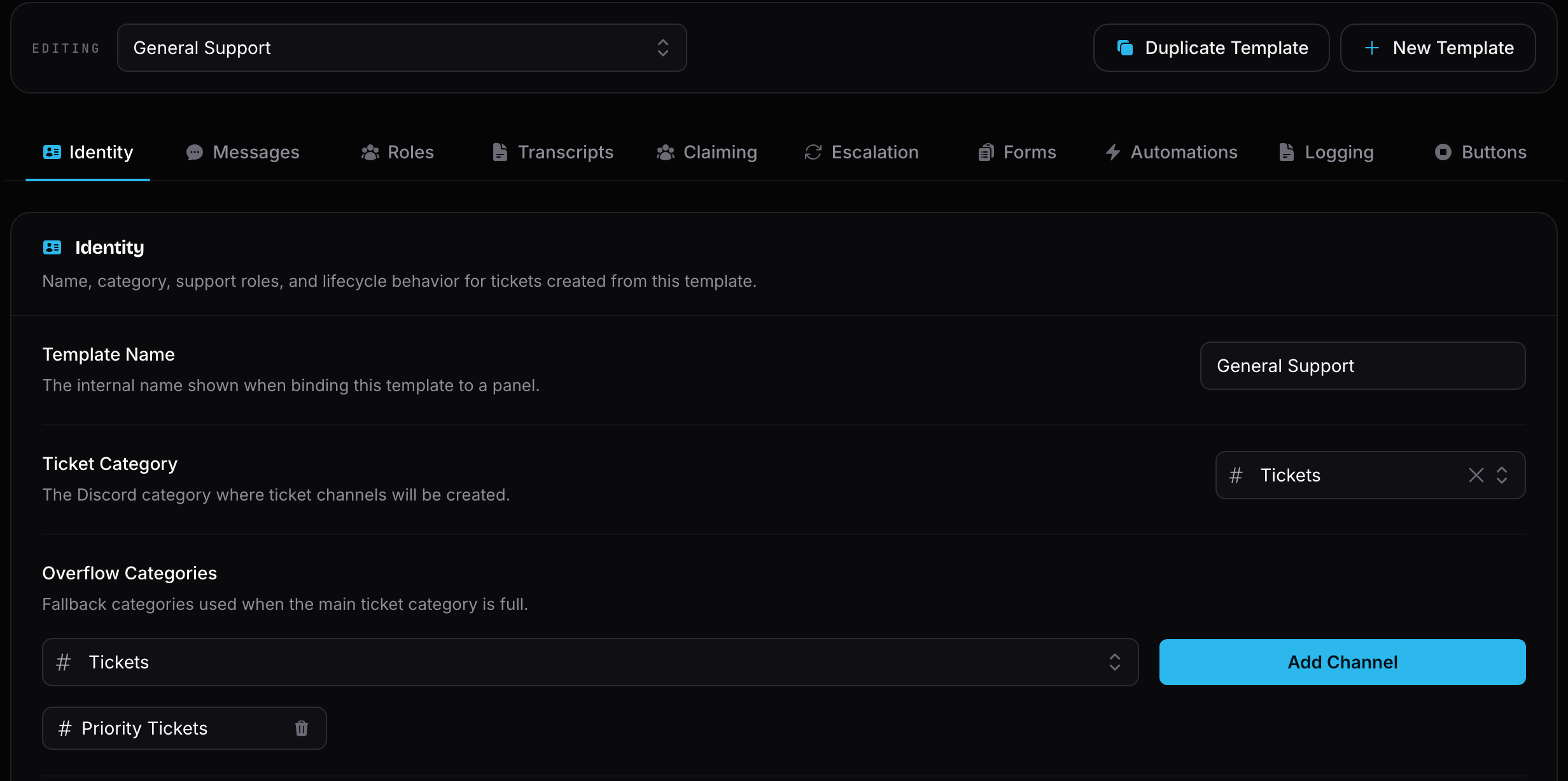
Creating a Template
To create your first template, click Create your first template. If you already have a template, click New Template.
Each template has tabs for identity, messages, roles, transcripts, claiming, escalation, forms, automations, logging, and buttons.
WARNING
Free servers can create up to 3 ticket templates.
Premium servers can create up to 25 ticket templates.
Identity
The Identity tab controls the core ticket behavior.
- Template Name is the internal name shown when binding the template to a panel.
- Ticket Category is where new ticket channels are created.
- Overflow Categories are fallback categories used when the main category is full.
- Naming Pattern controls the ticket channel name. Supported tokens are
{counter},{counter:04},{username},{user_id}, and{template}. - Support Roles are the roles that can see, write in, and manage tickets created from this template.
- Two Step Close asks users to confirm before a close button closes the ticket.
- Pin Initial Message pins the first Invite Tracker message inside the ticket channel.
- Tickets Per User limits how many open tickets each member can have from this template. Set it to
0for no limit. - Limit Bypass Roles allows selected roles to ignore the ticket limit for this template.
- Ticket Count is the current counter used by the
{counter}naming tokens. New tickets increment it before naming. - Opener Can Close controls whether the member who opened the ticket can close it.
Premium feature
Custom naming patterns require Invite Tracker Premium. Free servers use the default ticket-{counter:04} pattern.
WARNING
Free servers can configure 1 overflow category per template.
Premium servers can configure up to 25 overflow categories per template.
TIP
Use a padded counter such as ticket-{counter:04} if you want ticket channels like ticket-0001, ticket-0002, and ticket-0003.
WARNING
Discord categories can only contain 50 channels. If the main ticket category is full, Invite Tracker tries the configured overflow categories in order. If no configured category is available, opening, claiming, or escalating a ticket may fail until you free space or add another overflow category.
Messages
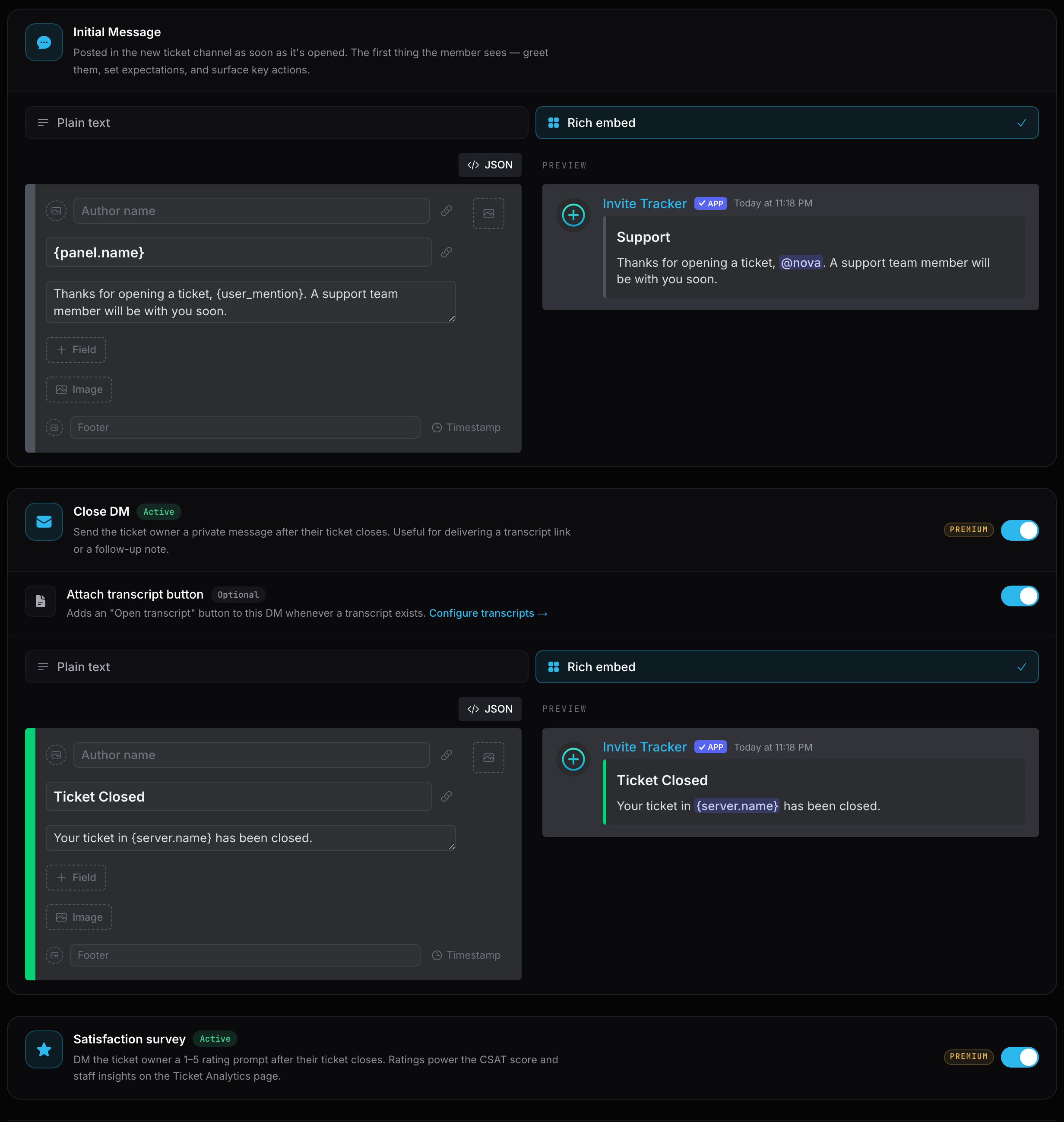
The Messages tab controls the first message sent inside a new ticket and the optional direct message sent when the ticket closes.
The Initial Message is posted in the ticket channel as soon as it opens. You can use plain text or a rich embed, and you can include ticket variables such as the ticket owner, channel, panel, template, and form answers.
The Close DM is a Premium feature. It is sent to the ticket owner when the ticket closes. If transcripts are enabled, you can also attach an Open transcript button to this DM.
The Satisfaction survey is a Premium feature, also found on the Messages tab. When enabled, Invite Tracker DMs the ticket owner a 1–5 rating prompt after their ticket closes. Ratings power the CSAT score and staff insights on the ticket analytics page.
INFO
Ticket embeds on free servers show a "Powered by Invite Tracker" footer and cannot use embed images, thumbnails, or author fields. Premium servers can fully customize ticket embeds.
WARNING
The close DM transcript button requires Opener Access to be enabled in the Transcripts tab.
INFO
The Two Step Close setting only applies to the close button. The /ticket-close command closes the ticket immediately.
Role Changes
Premium feature
Ticket role changes require Invite Tracker Premium.
The Roles tab lets you automatically add or remove roles from the ticket owner.
- Add On Open and Remove On Open run when the ticket is created.
- Add On Close and Remove On Close run when the ticket closes.
This is useful when you want to mark members as waiting for support, remove a role while a ticket is open, or grant a role after a support flow finishes.
WARNING
Invite Tracker can only add and remove roles that are below its highest role in your server's role list.
Transcripts
The Transcripts tab controls whether Invite Tracker saves an HTML transcript when a ticket closes.
When transcripts are enabled, Invite Tracker saves the ticket messages and form answers when the ticket closes. You can choose an optional Transcript Channel where Invite Tracker sends a ticket summary and an Open transcript button.
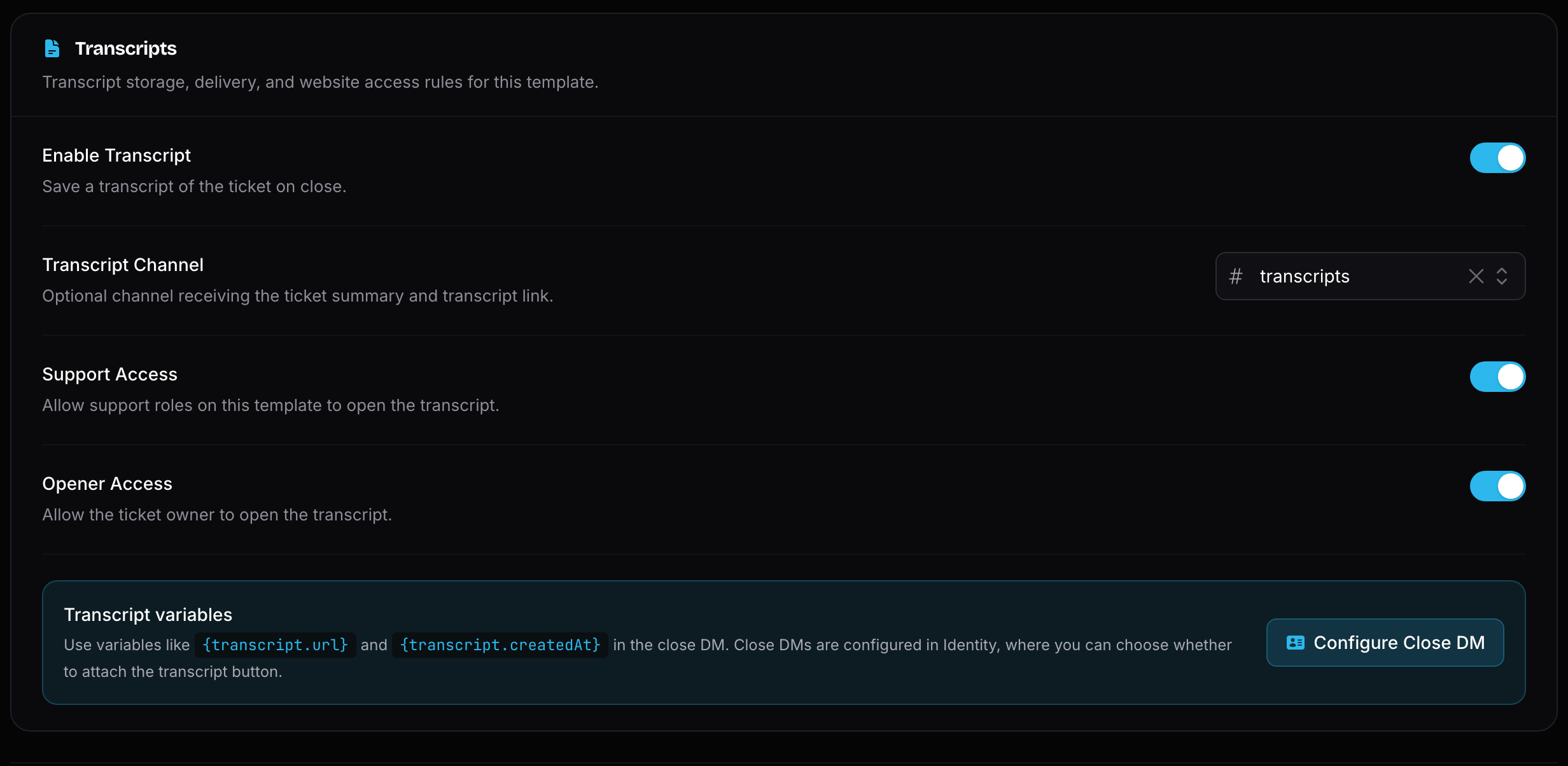
Transcript access is controlled by the template:
- Support Access allows members with the template's support roles to open the transcript.
- Opener Access allows the member who opened the ticket to open the transcript.
- Server administrators can access ticket transcripts.
INFO
Transcript links require users to sign in with Discord. A user can only open the transcript if their Discord account is allowed by the template access settings.
INFO
Transcripts include up to the most recent 5000 ticket messages. Very large transcripts may be shortened so they can be stored and opened reliably.
WARNING
Transcripts on free servers are stored for 30 days after they are saved and show a small "Powered by Invite Tracker" footer.
Premium servers keep transcripts with no time limit and without the footer branding.
WARNING
At least one transcript access option must stay enabled. If you want to send transcript buttons in close DMs, keep Opener Access enabled.
Claiming
The Claiming tab lets support members take responsibility for a ticket.
When claiming is enabled, support members can use the claim button or /ticket-claim in the ticket channel. Claiming can rename the channel, move it to a claim category, adjust support permissions, and change roles on the ticket owner.
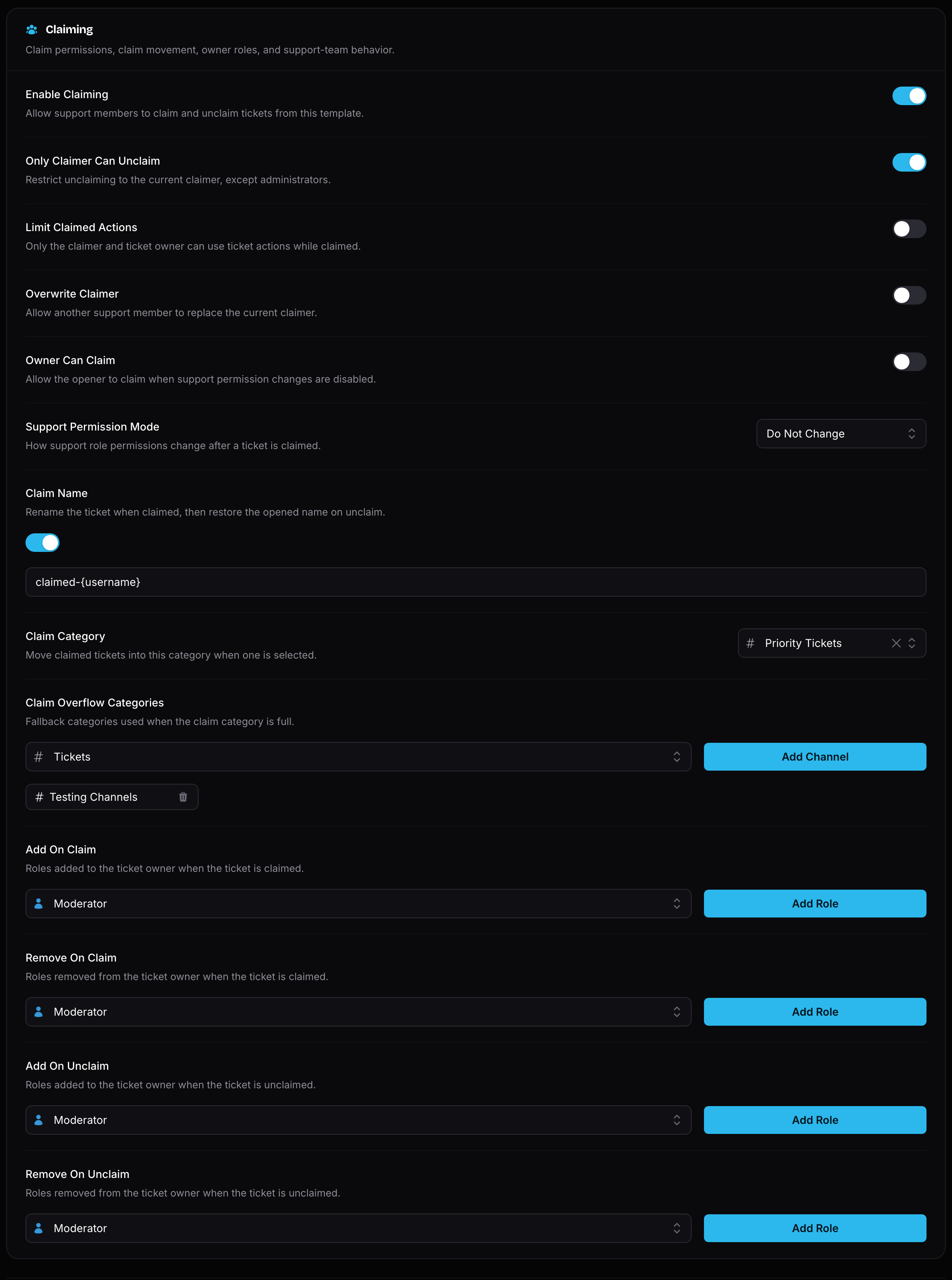
Important claiming settings:
- Only Claimer Can Unclaim restricts unclaiming to the current claimer, except for administrators.
- Limit Claimed Actions allows only the claimer and ticket owner to use ticket actions while the ticket is claimed.
- Overwrite Claimer lets another support member replace the current claimer.
- Owner Can Claim allows the ticket owner to claim the ticket when support permissions are not changed.
- Support Permission Mode decides what happens to other support roles after a claim. They can stay unchanged, become read-only, or be hidden from the ticket.
- Claim Name renames the ticket while claimed, then restores the original opened name when unclaimed.
- Claim Category and Claim Overflow Categories move claimed tickets into another category.
- Add/Remove On Claim and Add/Remove On Unclaim change roles on the ticket owner.
Premium feature
Advanced claiming requires Invite Tracker Premium. This includes Support Permission Mode, Claim Name, Claim Category, Claim Overflow Categories, and the claim/unclaim role changes. Free servers can still claim and unclaim tickets and use the basic claiming settings.
Escalation
Premium feature
Ticket escalation requires Invite Tracker Premium.
Escalation lets support members move an open ticket to another template by using /ticket-escalate.
First, enable escalation on the source template and select the Target Templates that tickets are allowed to escalate into. When a ticket is escalated, Invite Tracker can update the category, channel name, permissions, claim state, and messages using the target template.
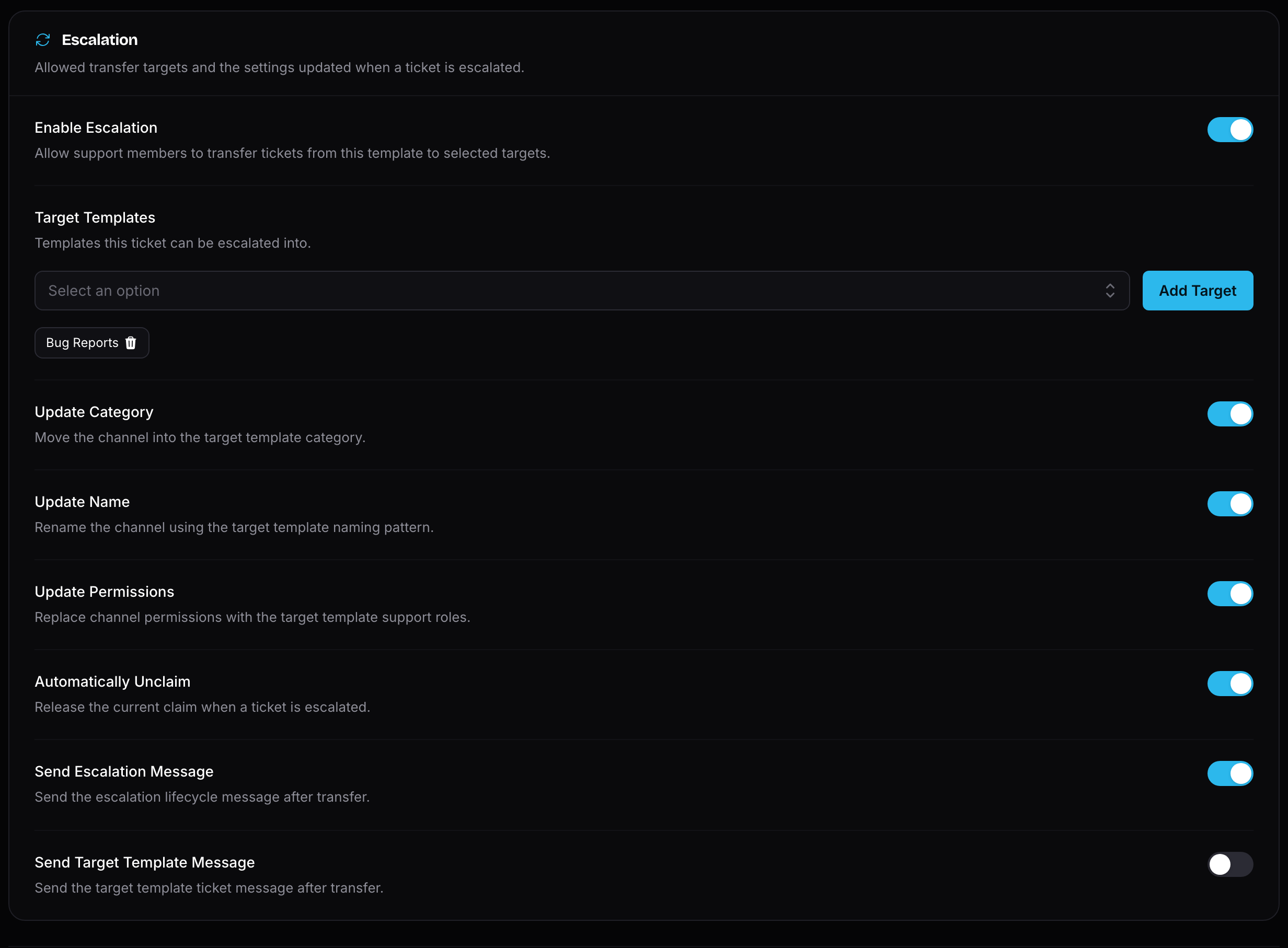
You can choose whether escalation should:
- Move the channel into the target template's category.
- Rename the channel using the target template's naming pattern.
- Replace support permissions with the target template's support roles.
- Automatically unclaim the ticket during transfer.
- Send a short escalation message.
- Send the target template's full initial ticket message.
TIP
Use escalation when your first support team needs to hand a ticket to another team, such as billing, appeals, partnerships, or senior moderators.
Target templates do not need to be bound to a panel. You can create internal-only templates, such as a Tier 2 team, that members cannot open tickets from directly.
Forms
The Forms tab lets you ask members questions before their ticket is created.
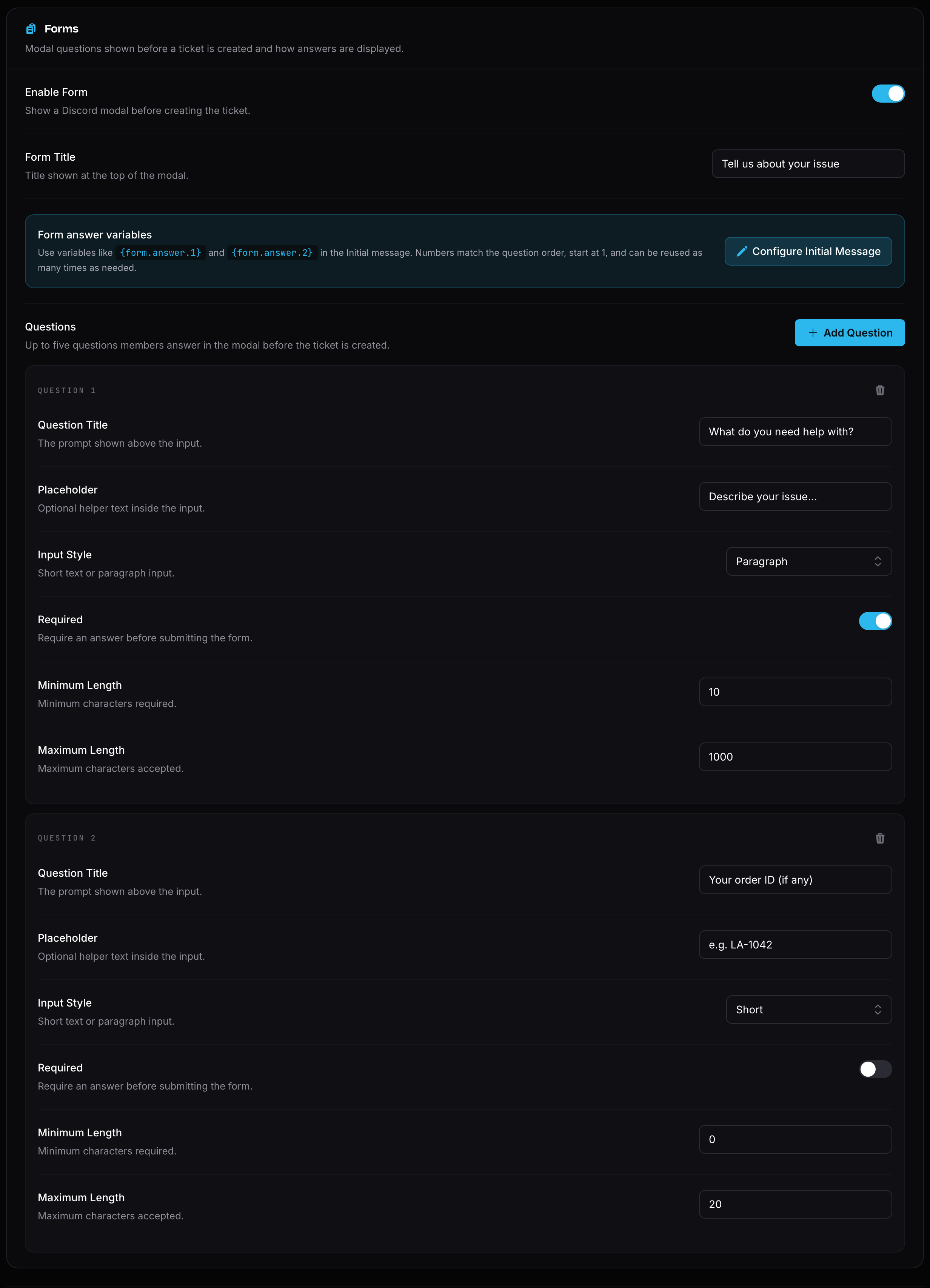
When forms are enabled, clicking the ticket panel opens a Discord modal. You can add questions, choose short or paragraph answers, set whether each answer is required, and configure minimum and maximum answer lengths.
WARNING
Free servers can add up to 3 form questions.
Premium servers can add up to 5 form questions.
You can show form answers in ticket messages using form variables. This lets support members see the member's issue immediately in the first ticket message.
WARNING
Form titles and question labels can be up to 45 characters. Question placeholders can be up to 100 characters, and answer limits can go up to 4000 characters.
Automations
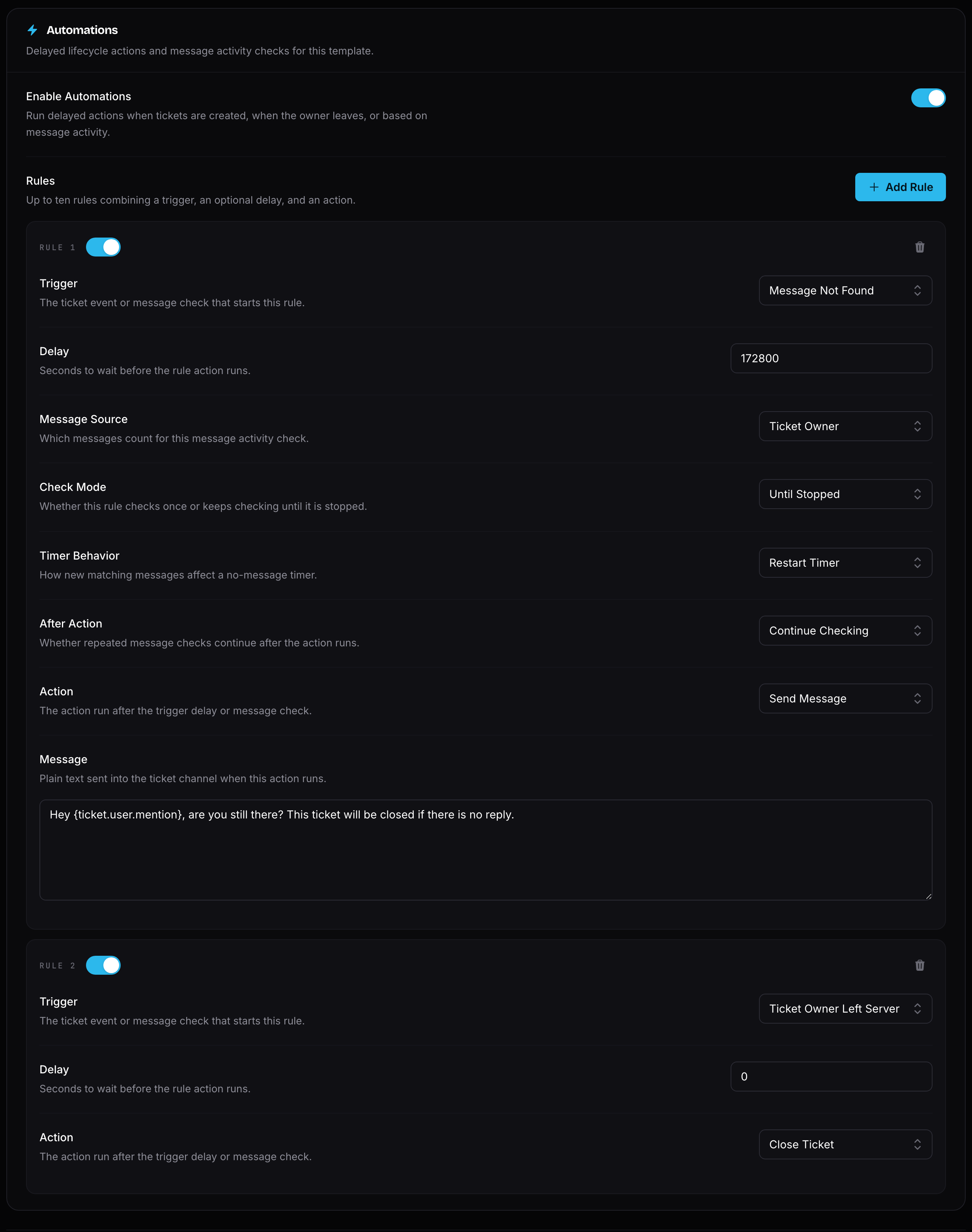
The Automations tab lets Invite Tracker react to ticket events after a delay.
Automation triggers include:
- Ticket Created
- Ticket Owner Left Server
- Message Found
- Message Not Found
Automation actions include:
- Send Message
- Close Ticket
For message-based automations, you can choose whether Invite Tracker checks messages from anyone, only the ticket owner, or only the support team. You can also choose whether the automation checks once or keeps checking until it is stopped.
Premium feature
Advanced automations, including auto-closing inactive tickets, require Invite Tracker Premium.
WARNING
Free servers can use 1 automation rule: Ticket Owner Left Server with the Close Ticket action.
Premium servers can use up to 10 automation rules per template with all triggers and actions.
Message-based automations must wait at least 5 minutes, and any automation delay can be up to 7 days.
TIP
Support members can use /ticket-automation stop in an open ticket to pause automations for that ticket, and /ticket-automation start to start them again.
Logging
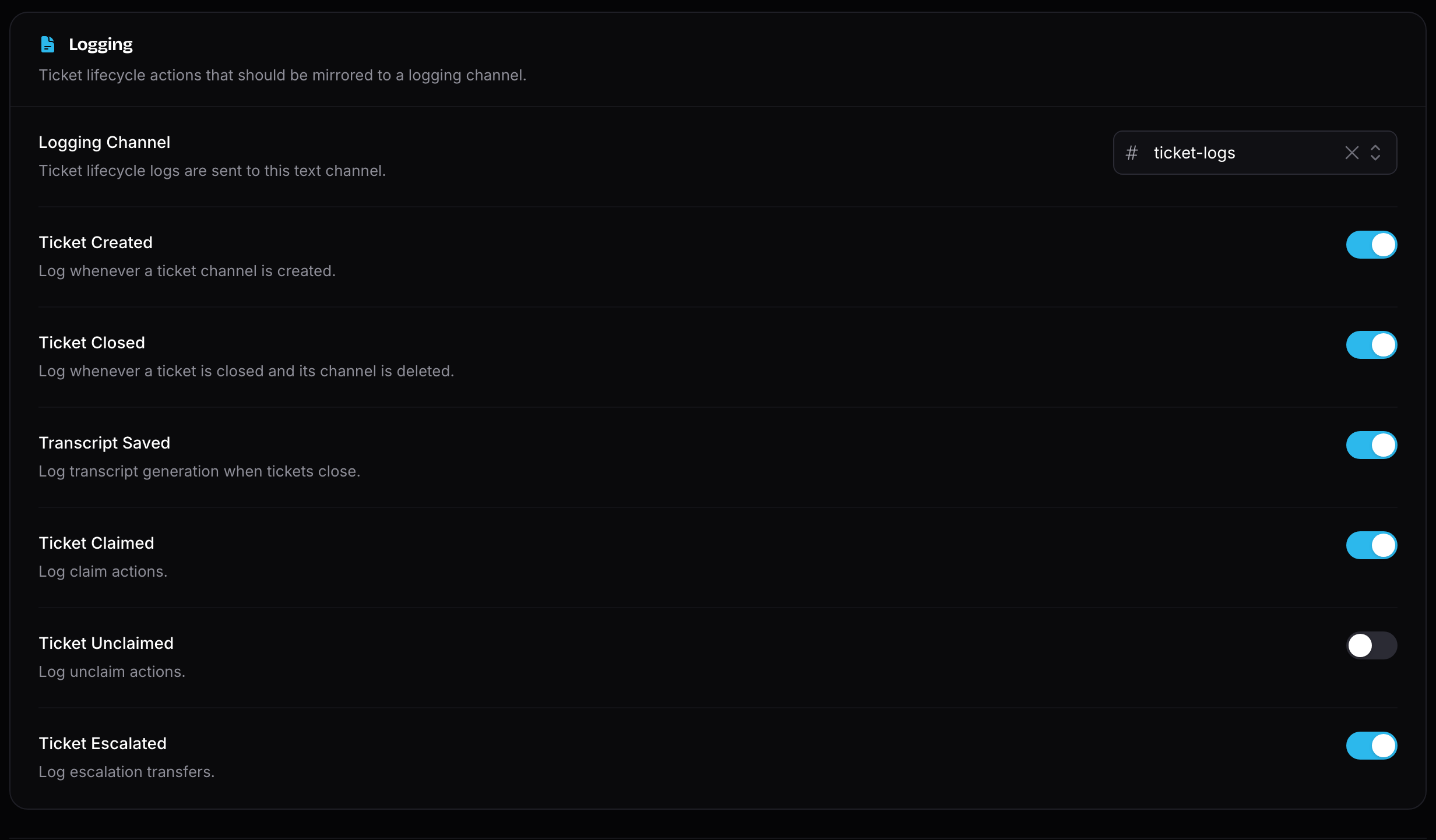
The Logging tab lets you send ticket lifecycle logs to a text channel.
You can log:
- Ticket created
- Ticket closed
- Transcript saved
- Ticket claimed
- Ticket unclaimed
- Ticket escalated
Buttons
The Buttons tab lets you configure the ticket action buttons shown on the first ticket message.
You can enable or disable the Close, Claim, and Unclaim buttons, set their emoji, change their label, and choose their Discord button style.
INFO
Claim and unclaim buttons only appear when claiming is enabled for the template.