
Audit Log
The audit log shows who changed what in your server through Invite Tracker. Every bot command that changes something is recorded with the member who ran it, the channel and the options they used, and every change saved on the dashboard is recorded with the member who saved it. When a member's invite count suddenly jumps or a setting changes, you can see who did it and when.
You can find it on the dashboard's Audit Log page, in the Server section of the sidebar. There is nothing to set up: Invite Tracker keeps an audit log for every server automatically.
How It Works
- New entries show up on the page within a few seconds. Press Refresh to load them.
- Entries are listed newest first, in your local time zone. Press Load more at the bottom to see older ones.
- Entries are kept for 90 days and then deleted automatically.
- Only actions that change something are recorded. Commands that only show information, like
/invites,/leaderboard,/helpor the export commands, are never logged, and neither is browsing the dashboard. - A command is only recorded when it actually went through. A command that failed, was refused (for example because it needs Premium) or had nothing to change is left out. Commands with a confirmation step, like
/massban, are recorded when Confirm is pressed, along with the result.
INFO
Like the rest of the dashboard, the audit log can only be opened by members with the Administrator permission. See the FAQ for details.
What Is Recorded
Commands
Each command entry shows the command, the channel it was used in and the options that were filled in.
| Category | Recorded commands |
|---|---|
| Invite and message management | /addinvites, /removeinvites, /resetinvites, /addbonus, /removebonus, /addfakeinvites, /removefakeinvites, /addmessages, /removemessages, /resetmessages |
| Administration | /deleteinvite, /syncinvites, /purge-invite-codes, /massban, /lockdown start, /lockdown end |
| Verification | /forceverify |
| Giveaways | /giveaway create, /giveaway end, /giveaway reroll, /giveaway delete |
| Tickets | /ticket-close, /ticket-claim, /ticket-unclaim, /ticket-rename, /ticket-add-user, /ticket-remove-user, /ticket-add-role, /ticket-remove-role, /ticket-escalate, /ticket-automation |
TIP
Long option values are shortened, and uploaded files are recorded by their file name. On the dashboard, members, channels and roles picked as options are shown by their ID. In the log channel they show up as mentions.
Buttons and Menus
Some changes are made with a button or a menu instead of a command. These are recorded under the command they belong to, shown as for example /massban panel, along with what happened:
- Confirming
/massban,/purge-invite-codesor/syncinvites, with how many members were banned, how many invite codes are being purged or how many invites were synced - The response buttons on a raid alert (Pause invites, Raise verification, Kick young joiners, Ban raid cohort and False alarm), recorded under
/lockdown - Closing, claiming and unclaiming a ticket with the buttons in the ticket channel
- Enabling join messages from the
/setuppanel - Saving a giveaway as a template right after creating it with
/giveaway create
Dashboard Changes
Every change saved on the dashboard is recorded with the member who saved it, the page it was made on and the kind of change, for example Raid protection · Settings updated, Giveaways · Giveaway rerolled or Tickets · Panel message sent. This covers saving the settings of any page as well as actions like creating, editing, ending and rerolling giveaways, managing ticket panels and templates, sending panel and test messages, or creating a honeypot channel.
INFO
For dashboard changes, the audit log records who saved changes on which page and when, but not the values that were changed. To see what a setting is set to now, open its page.
Entries
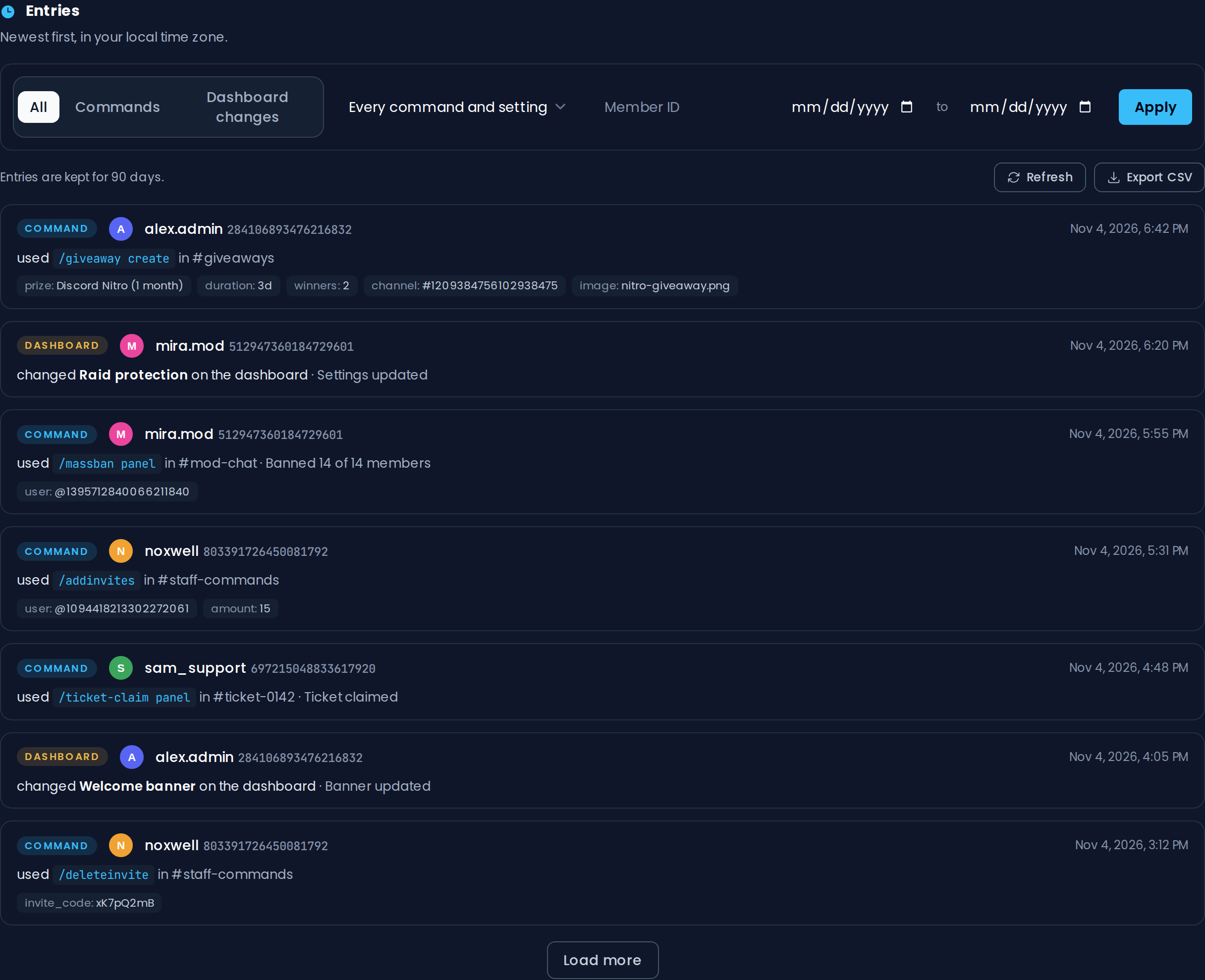
Every entry shows whether it was a Command or a Dashboard change, the member who made it (with their user ID) and when it happened, followed by what they did.
WARNING
Free servers see the last 24 hours of their audit log. Premium servers see the full 90 days.
On free servers, a notice under the list shows how many older entries are hidden.
TIP
The audit log is stored for the full 90 days on every server, free servers included. If you upgrade to Premium, your whole history is there right away.
Filters
Premium feature
Filtering the audit log requires Invite Tracker Premium.
The filter bar above the entries lets you narrow the log down:
- Type: show All entries, only Commands or only Dashboard changes
- Every command and setting: pick a single command or a single dashboard page to show only its entries. The list only offers the commands and pages that appear in your log.
- Member ID: show only the actions of one member. Paste their user ID.
- Date range: show only the entries between two dates (both included), within the last 90 days
Press Apply to filter the entries and Reset to clear every filter.
Export CSV
Premium feature
Exporting the audit log as CSV requires Invite Tracker Premium.
Premium servers can download the audit log as a .csv file with the Export CSV button. The export uses the filters currently set, so narrow the log down first if you only need part of it.
| Column | Description |
|---|---|
created_at | When the entry happened (UTC) |
kind | command or dashboard |
user_id | The Discord user ID of the member |
username | The member's username, when known |
channel_id | The ID of the channel a command was used in |
channel_name | The name of that channel |
command | The command that was used |
command_type | slash for a command, component or modal for a button, menu or form that belongs to the command |
options | The options that were filled in, as name=value separated by ; |
area | The dashboard page a change was made on |
action | What happened, for example Settings updated or Banned 14 of 14 members |
WARNING
Exports contain up to the 50,000 most recent entries matching your filters and can be requested once per minute. If your log has more, narrow the date range and export the rest separately.
Log Channel
Premium feature
The log channel requires Invite Tracker Premium.
Turn on Post to a channel and pick a Channel to have every new entry posted to Discord as it happens.
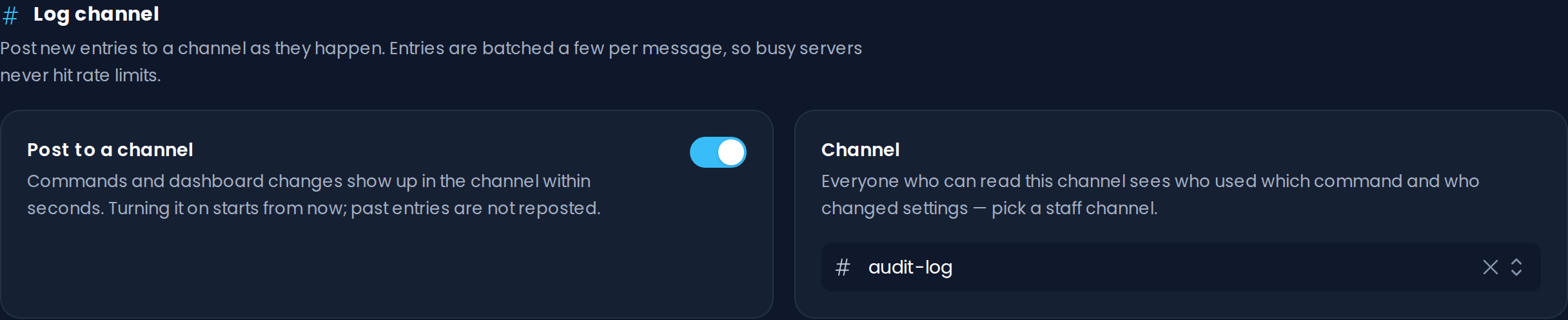
- New entries are posted shortly after they happen, grouped up to 10 per message.
- Each line shows the time, the member, what they did, the channel and the options. Members, channels and roles are shown as mentions.
- Posting starts from the moment you turn it on or switch to another channel. Older entries are not reposted.
- The messages are titled Invite Tracker Audit log. If your server uses a Custom Bot, the messages come from your custom bot and carry its name instead.
WARNING
Everyone who can read the channel sees who used which command and who changed settings, so pick a channel only your staff can see.
The bot needs the permission to send messages (and embeds) in the selected channel. If it can no longer post, for example because the channel was deleted or the permission was removed, the log channel is automatically turned off.
Free and Premium
| Feature | Free | Premium |
|---|---|---|
| Visible history | Last 24 hours | 90 days |
| Filters | No | Yes |
| CSV export | No | Yes |
| Log channel | No | Yes |
INFO
If your server's Premium ends, the page goes back to showing the last 24 hours and the log channel stops posting.