
Events
Premium feature
Events require Invite Tracker Premium.
Events are time-boxed invite and message competitions: pick what is counted, how long the event runs and how many ranks win, and Invite Tracker counts the invites or messages of your members from the start of the event, keeps an event leaderboard up to date and announces the winners when the event ends.
Events have their own scores, starting at zero when the event starts. The server's main leaderboard, /invites, /messages and /leaderboard are never affected by events, and events are not affected by /resetinvites and /resetmessages.
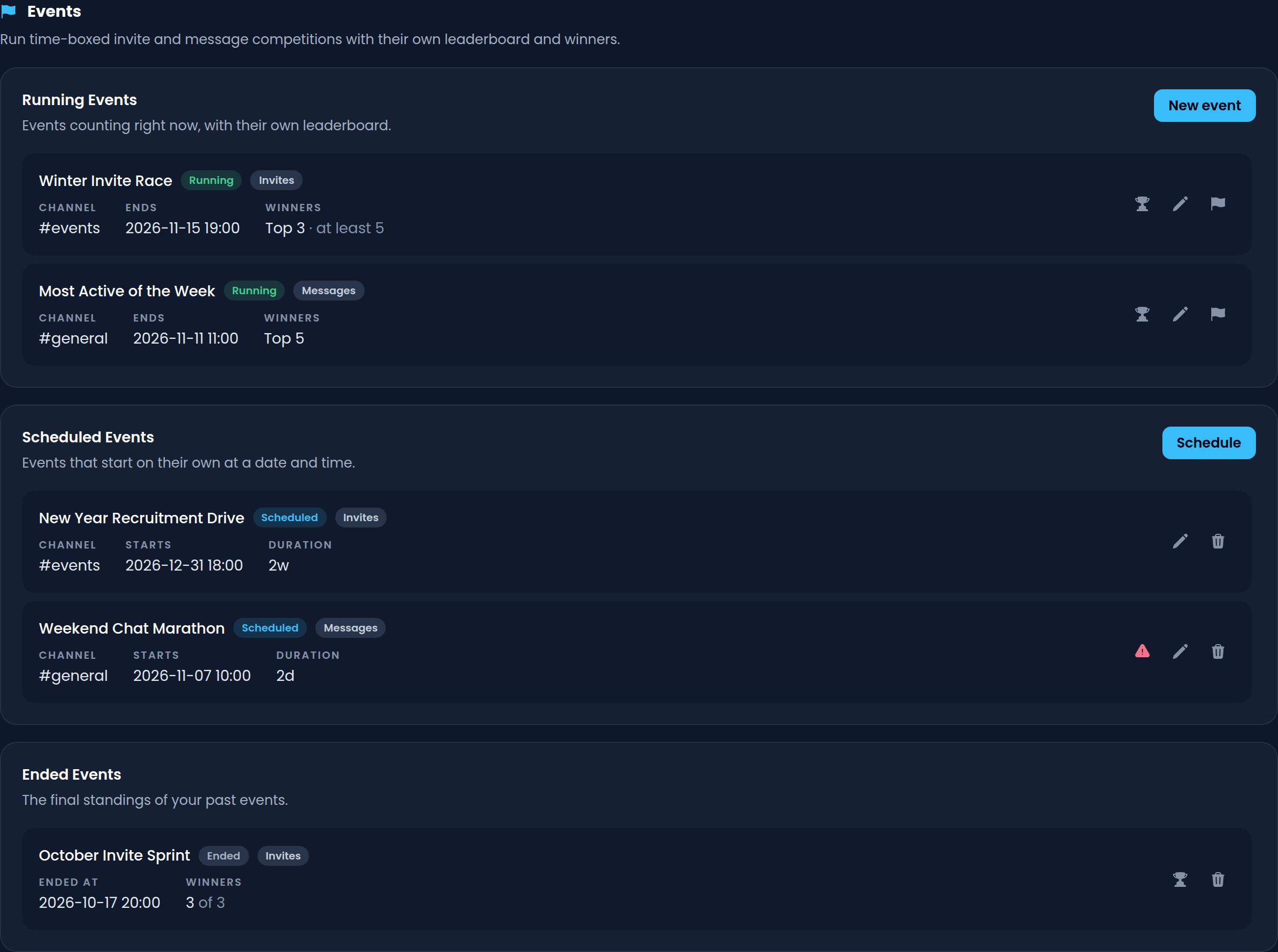
Creating an Event
Click the blue New event button next to Running Events to open the New event menu, or Schedule next to Scheduled Events to open it on a scheduled start.
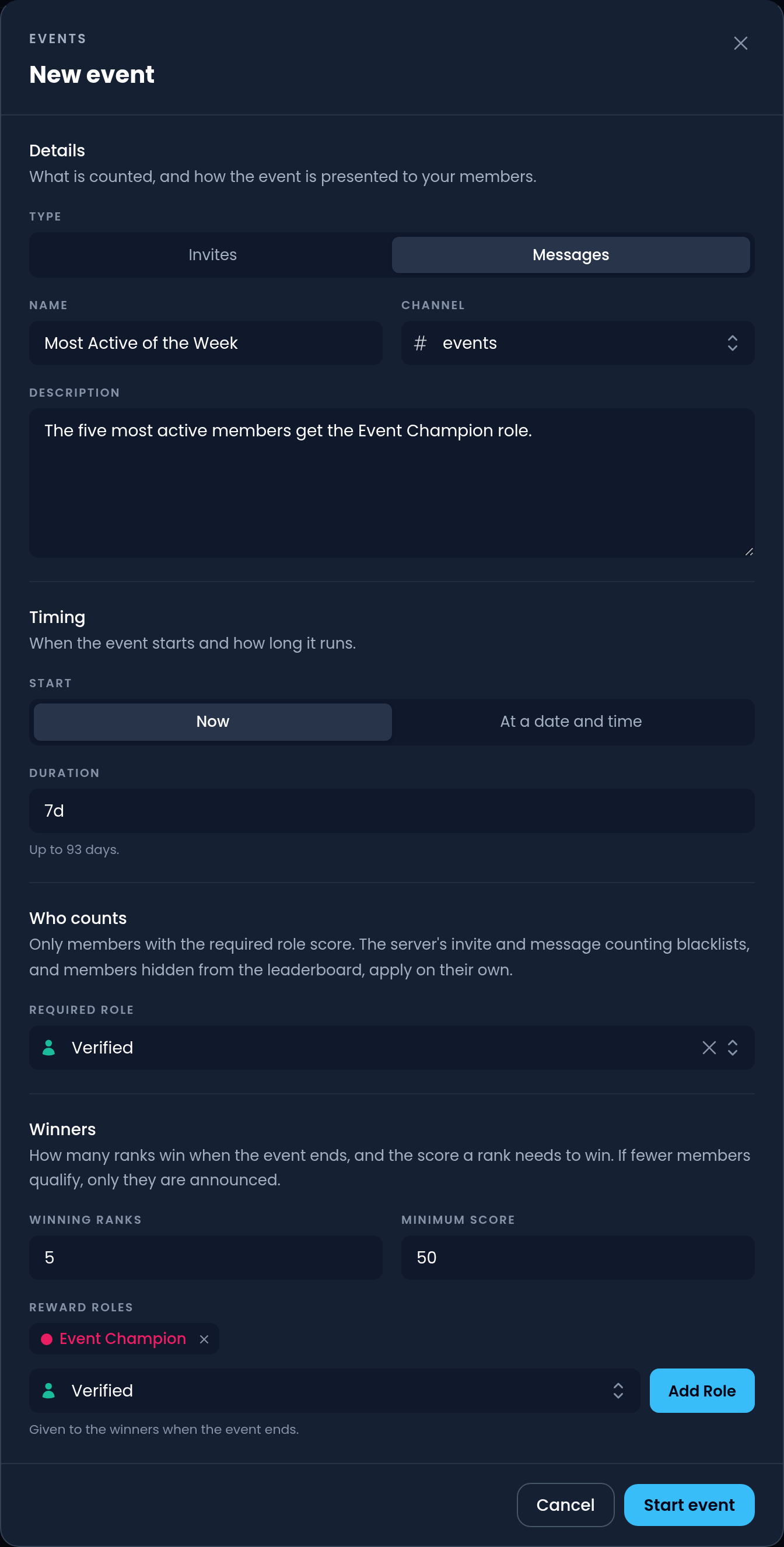
Details
- Type is what the event counts: Invites or Messages. One event counts one of them.
- Name is how the event is called on the event message, in the
/eventcommands and on the dashboard. - Channel is where the event message is sent and where the winners are announced when the event ends.
- Description is optional text shown on the event message, for example the prizes.
WARNING
The name can be up to 100 characters long and the description up to 1000.
Timing
Under Start, choose Now to start the event as soon as you create it, or At a date and time to schedule it: it then starts on its own at the Start date and Start time you fill in, in your time zone.
Duration is how long the event runs once started, for example 7d or 3d 12h. The supported units are s = seconds, m = minutes, h = hours, d = days and w = weeks.
WARNING
An event can last up to 3 months. A server can run up to 10 events at the same time and schedule as many as it wants.
Who Counts
Required role restricts the event to the members with that role: only they score. Leave it on Everyone to let every member take part.
Whether or not a role is required, the server's existing rules apply to events on their own:
- Members and roles in the invite blacklist never score in invite events, and members hidden from the leaderboard don't appear on an invite event's leaderboard.
- The message counting blacklists, whitelists, minimum words and counting delay apply to message events.
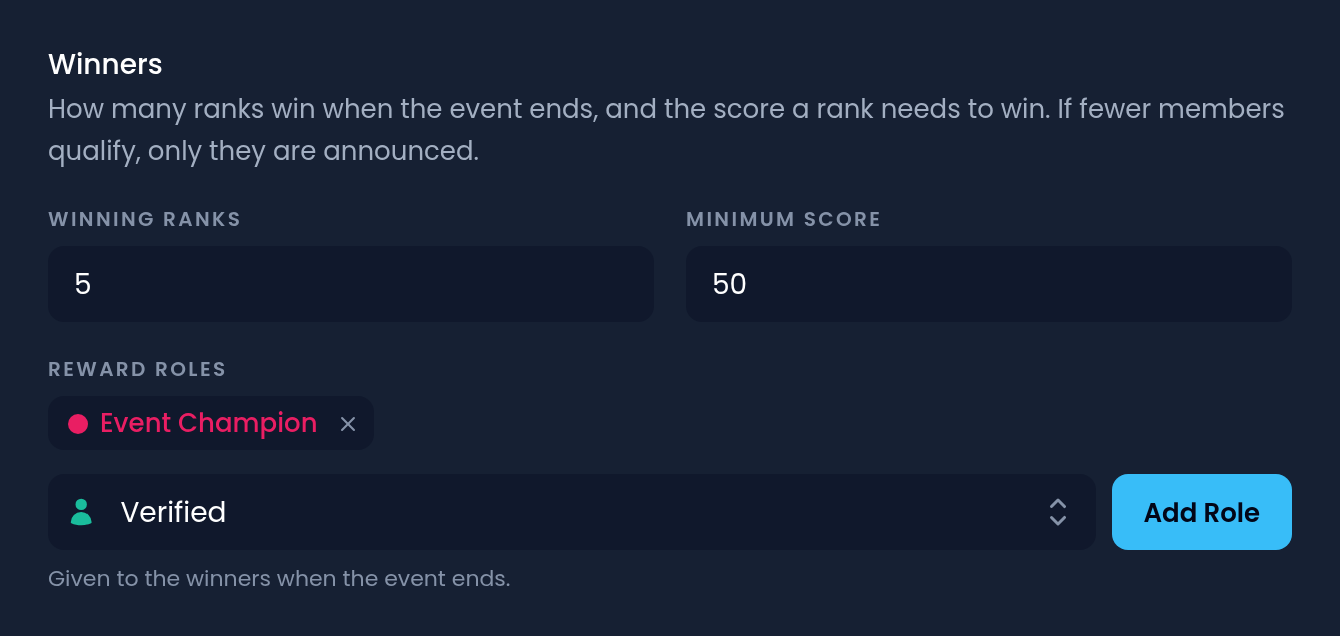
Winners
- Winning ranks is how many ranks win when the event ends:
3makes the top 3 the winners. - Minimum score is the score a rank needs to win. For example, with 5 winning ranks and a minimum of 10 invites, the top 5 win, but only those with at least 10 invites. If fewer members qualify than there are winning ranks, only the ones who do are announced.
- Reward roles are given to the winners when a message event ends. They only exist for message events: invite events announce their winners but never give them roles, following Discord's platform manipulation policy (see How do I set up invite roles?).
WARNING
An event can have up to 50 winning ranks and up to 10 reward roles. Invite Tracker needs the Manage Roles permission and can only give roles that are below its own highest role.
Click Start event (or Schedule) at the bottom of the menu. A started event shows up under Running Events with its channel, when it ends and its winning ranks.
How Events Count
An event counts the same invites and messages Invite Tracker already counts, from the moment it starts:
- Invite events count the regular invites of the inviter. Fake invites never count. If an invited member leaves while the event is running, the invite they brought is taken back from the inviter's event score.
- Message events count the messages that count towards the member's message count.
INFO
Events keep their own scores for as long as they run, however long that is: they do not depend on the daily, weekly and monthly leaderboard windows.
The Event Message
When an event starts, Invite Tracker sends an event message in its channel. It shows the event's name and description, its type, when it ends as a countdown, the rules and the top 10, and is updated every 15 minutes. Under it, two buttons answer only to the member who clicks them:
- My rank shows the member's score, rank and the gap to the next rank.
- Full leaderboard shows the full leaderboard, 10 ranks per page.
WARNING
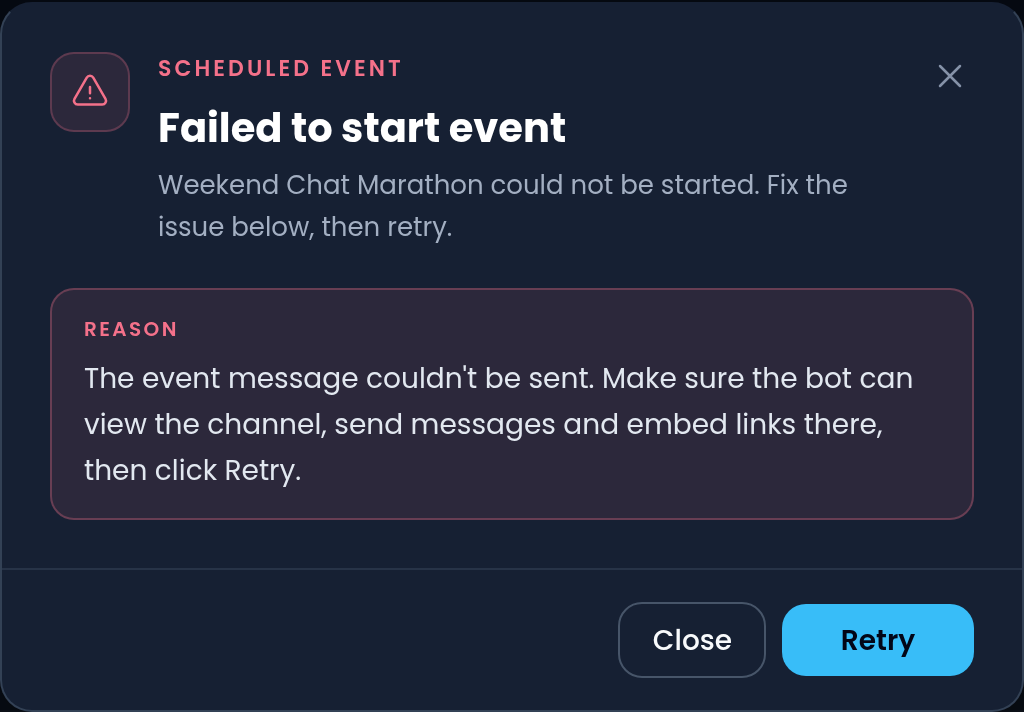
Invite Tracker needs the permission to view the channel, send messages and embed links in it. If the event message or its channel is deleted, the event keeps running and still ends with its winners announced if the channel exists.
If your server's Premium expires, running events keep counting and still end with their winners, but their event messages stop updating and the /event commands stop answering until Premium is active again, like pinned leaderboards.
When an Event Ends
An event ends on its own when its duration is over. Its event message becomes a frozen final board and Invite Tracker posts a winners announcement in the event's channel, mentioning the winners. For message events, the reward roles are given to the winners.
The event then moves to Ended Events on the dashboard.
Editing an Event
To edit a running event, click the Pencil button next to it under Running Events. Everything except the type and the channel can be changed. The duration counts from the start of the event, so a longer duration pushes its end back and a shorter one brings it closer. After you save, the event message is updated.
Scheduled events can be fully edited, including their type, channel and start, with the Pencil button under Scheduled Events, and deleted with the Trash button.
Ending an Event Early
To end a running event now, click the Flag button next to it under Running Events and confirm. The standings are frozen right away and the winners are announced, exactly like when the event ends on its own.
When a Scheduled Event Can't Start
If a scheduled event can't start (for example because Invite Tracker is missing permissions in the event channel, the server already runs 10 events, or it no longer has Premium), a red warning icon appears next to it under Scheduled Events. Click it to see why, fix the issue, then click Retry.
Final Standings and CSV Export
Click the Trophy button next to an event to see its standings: live for a running event, final for an ended one, with the winners highlighted.
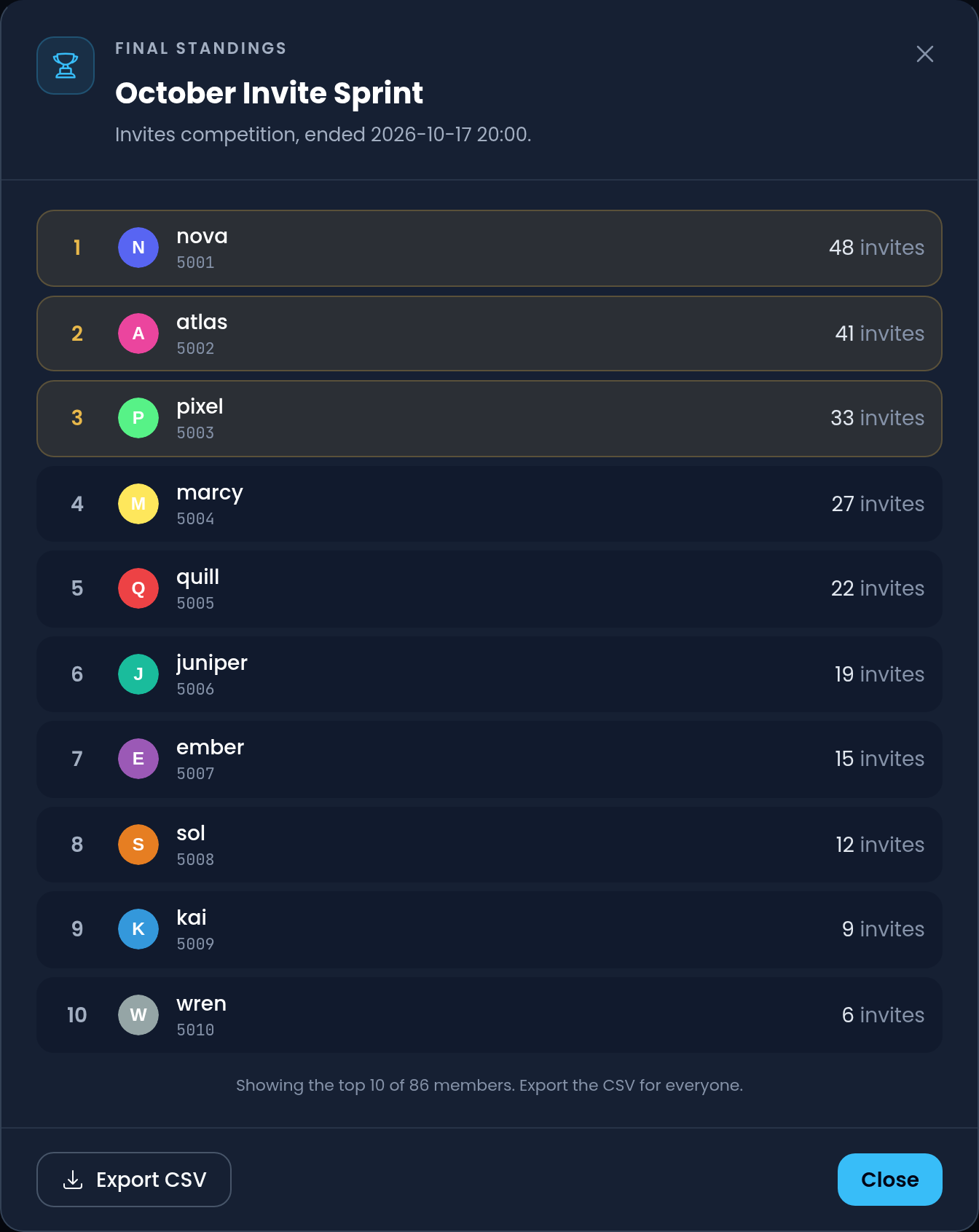
Click Export CSV to download the full standings (rank, user ID, username and score) as a CSV file.
INFO
A server keeps its 50 most recently ended events. Older ended events and their standings are removed. You can also delete an ended event yourself with the Trash button.